

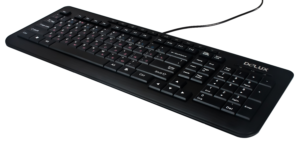
The 3 main types of keyboards are:
- Membrane keyboards: These are the most common type of keyboards, featuring a flexible membrane under the keys that completes a circuit when pressed. They are typically quiet and low-cost, but have a less satisfying typing feel and can wear out quickly.
- Scissor-switch keyboards: These keyboards use a scissor mechanism to provide a stable, low-profile typing experience. They are similar to membrane keyboards in terms of typing feel and are often used in laptops or ultra-thin keyboards.
- Mechanical keyboards: As mentioned earlier, mechanical keyboards use individual mechanical switches for each key that provide a more tactile and responsive typing experience. They are favored by gamers and heavy typists and can be customized to suit personal preferences. Mechanical keyboards tend to be more expensive and louder than other types of keyboards.
Some frequently asked questions about computer keyboards include:
- What is the difference between a wired and wireless keyboard?
- How do I clean my keyboard?
- How do I troubleshoot keyboard issues, such as keys not working or typing the wrong characters?
- How do I choose a keyboard that is comfortable for me to type on?
- How do I use shortcut keys or hotkeys on my keyboard?
- How do I connect a keyboard to a computer or device?
- Can I use a keyboard with a different operating system?
- How do I turn on or off the num lock, caps lock, or scroll lock?
- How do I program or reprogram the function keys on my keyboard?
- What is a mechanical keyboard, and what are its benefits?

Answers
- What is the difference between a wired and wireless keyboard? A wired keyboard connects to a computer through a cable and requires no additional power source. A wireless keyboard uses Bluetooth or a USB receiver to connect to a computer and requires a battery or other power source. Wireless keyboards offer more mobility and a cleaner desk setup but can suffer from lag and limited battery life, while wired keyboards are more reliable but have the drawback of being tethered to the computer.
- How do I clean my keyboard? To clean a keyboard, you can use compressed air or a vacuum to remove any loose debris. For more thorough cleaning, you can gently clean the keys with a damp cloth or cotton swab, being careful not to let any liquid seep into the keyboard. For keyboards that are particularly dirty or sticky, you can use a solution of water and a small amount of mild soap to clean the keys, again being careful to avoid moisture damage.
- How do I troubleshoot keyboard issues, such as keys not working or typing the wrong characters? First, try restarting the computer. If the issue persists, check to see if the keyboard is properly connected to the computer and has sufficient power. If the issue still persists, try uninstalling and then reinstalling the keyboard drivers from the device manufacturer’s website. If the issue is specific to certain keys, the key may be stuck or malfunctioning and will need to be replaced.
- How do I choose a keyboard that is comfortable for me to type on? Consider factors such as the layout (e.g. full size, compact), key feel (e.g. scissor-switch, mechanical), and ergonomics (e.g. wrist support, split design). It can also be helpful to try typing on the keyboard before purchasing, to get a feel for its comfort and suitability for your typing needs.
- How do I use shortcut keys or hotkeys on my keyboard? Shortcut keys or hotkeys are combinations of keyboard keys that perform specific actions when pressed. They vary depending on the operating system and specific applications but can be found in the program’s menu or through a search of the program’s help documentation. Common examples include cut (Ctrl+X), copy (Ctrl+C), paste (Ctrl+V), and save (Ctrl+S).
- How do I connect a keyboard to a computer or device? For a wired keyboard, plug the keyboard cable into a USB port on the computer. For a wireless keyboard, connect the wireless USB receiver to the computer and follow the manufacturer’s instructions for pairing the keyboard with the computer. Some keyboards may also require the installation of drivers from the manufacturer’s website.
- Can I use a keyboard with a different operating system? Some keyboards are designed specifically for a certain operating system, but many keyboards can be used with multiple operating systems with proper drivers or software. It is best to check the manufacturer’s specifications or website for compatibility information.
- How do I turn on or off the num lock, caps lock, or scroll lock? These functions are usually controlled by specific keys on the keyboard, usually labeled with the respective function (e.g. Num Lock, Caps Lock, Scroll Lock). To turn them on or off, simply press the corresponding key. The status of these functions is indicated by an LED on the keyboard.
- How do I program or reprogram the function keys on my keyboard? The ability to program or reprogram function keys depends on the keyboard model and software. Some keyboards have software that allows you to program the function keys for specific tasks, while others may allow you to reprogram them through the operating system or the BIOS. To determine if your keyboard can be programmed and how to do so, refer to the manufacturer’s specifications or website. If there is no specific software available, some operating systems or specific applications may allow you to create custom keyboard shortcuts to accomplish similar tasks.
- What is a mechanical keyboard, and what are its benefits? A mechanical keyboard is a type of keyboard that uses individual mechanical switches for each key, as opposed to the rubber dome switches found in most traditional keyboards. The benefits of mechanical keyboards include improved typing feel and response, longer lifespan due to durable switches, and the ability to customize the key switches for specific typing preferences. Mechanical keyboards are often favored by gamers and heavy typists for their improved performance and durability.
Related, The best gaming laptops